


Printing a profiling chart on Mac with ColorSync Utility
To create your free custom ICC profile, we need a profiling chart printed on your Mac with no colour management applied. That way, we measure exactly how your printer, inks and paper reproduce colour.
You don’t need any extra software to do it. Every Mac includes ColorSync Utility, which prints the chart unmanaged in a few simple steps. It replaces the Adobe Color Printer Utility, which no longer works on newer versions of macOS.
Getting started
A few quick checks now will save you reprinting the chart later.
- Download the profiling documents. Get the ICC Profile Pack from our website. It includes the profiling chart (a TIFF file) and the order form you’ll send back with it.
- Make sure your printer isn’t using AirPrint. After a macOS update, many Macs switch printers over to AirPrint, which hides the media type and quality settings you need. Install the full driver from Canon or Epson first.
Our guide to removing AirPrint after a macOS update shows you how. - Run a nozzle check. Any blocked nozzles will show up as banding on the chart, and we can’t build an accurate profile from it.
- Load A4 paper coated side up. Use the paper you want the profile for, as each profile is made for one paper.
Printing your chart with ColorSync Utility
- Open ColorSync Utility. You’ll find it in Applications > Utilities, or search for it with Spotlight.
- Open the chart. Go to File > Open and choose the profiling chart TIFF from the ICC Profile Pack. Don’t resize or crop it.
- Open the print window. Go to File > Print and check the correct printer is selected.
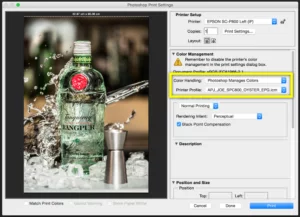
- Change the colour matching profile. In the menu in the middle of the print window, choose Color Matching. Change the profile from Automatic to any other profile in the list. This avoids a known glitch, and the next step overrides it anyway.
- Turn on “Print as color target”. Go back to the ColorSync Utility option in the same menu and tick Print as color target. This is the most important step, as it turns off all colour management.
- Set your media and quality. In your printer’s settings, choose the media type closest to your paper and a high print quality. Use our suggested media settings if you’re not sure. Print at A4, 100% scale, and not borderless.
- Print the chart.
Quick recap
Printing a profiling chart on your Mac only takes a few minutes once your printer is set up correctly:
- Install the full Canon or Epson driver, not AirPrint
- Open the chart in ColorSync Utility
- Change Color Matching from Automatic to any other profile
- Tick Print as color target to turn off colour management
- Set your media type and quality, then print at A4 and 100%
Then follow the instructions in the ICC Profile Pack to send your chart to us, and we’ll email your free custom ICC profile back to you.