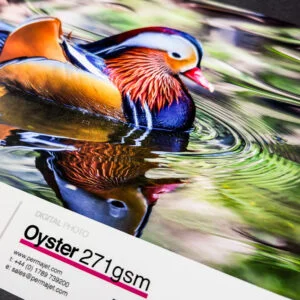


Finding the solution to your printer issues
Printing problems can affect anyone, whether you’re printing at home or producing work professionally. From faded colours to paper jams, small issues can quickly impact the final result.
The good news is that most common printing problems are easy to identify and fix. With the right approach, you can improve print quality, avoid wasted materials, and get consistent results every time.
This article breaks down the most frequent printing issues, what causes them, and how to fix them quickly.
Why printing problems happen
Most printer printing problems come down to a few simple factors. Understanding these makes troubleshooting much easier.
Incorrect settings
Using the wrong paper type, print quality, or colour settings is one of the biggest causes of poor results.
Paper mismatch
Not all paper is designed for inkjet printing. Using the wrong type can lead to smudging, dull colours, or lack of detail.
Ink & printhead issues
Blocked nozzles or low ink levels can cause streaks, banding, and uneven prints.
Lack of maintenance
Over time, printers need cleaning and calibration. Skipping this leads to reduced print quality.
In most cases, fixing common printing issues starts with checking these basics before moving to more complex solutions.

1. Faded or dull prints
What it looks like
Colours appear washed out, flat, or lacking contrast compared to what you see on screen.
Common causes
- Incorrect print quality settings
- Low ink levels
- Wrong paper type selected
- Paper not designed for inkjet printing
How to fix it
- Set your printer to a higher print quality setting
- Check ink levels and replace if needed
- Make sure the correct paper type is selected in the driver
- Use a paper designed for inkjet printing to improve colour depth and detail
2. Colours don’t match the screen
What it looks like
Prints look too dark, too light, or have completely different colours compared to your screen.
Common causes
- No ICC profile being used
- Screen brightness set too high
- Incorrect colour management settings
- Mismatch between printer, ink, and paper
How to fix it
- Use the correct ICC profile for your printer and paper. PermaJet offer free ICC profiles to help you achieve accurate colour matching between your printer and paper, click here for more information.
- Reduce screen brightness to a realistic level
- Ensure only one system is managing colour, either your software or your printer
- Keep your workflow consistent when printing
3. Streaks or banding in prints
What it looks like
Visible horizontal or vertical lines across the print. Areas may look uneven or missing detail.
Common causes
- Clogged or partially blocked printhead
- Low ink levels
- Infrequent printer use
- Printhead misalignment
How to fix it
- Run a printhead cleaning cycle from your printer settings
- Check and replace low ink cartridges
- Perform a printhead alignment
- Print regularly to prevent ink drying in the nozzles
4. Smudging or ink not drying
What it looks like
Ink smears when touched or appears wet even after printing.
Common causes
- Paper not designed for inkjet printing
- Too much ink being applied for the paper type
- Incorrect driver settings
- High humidity or poor drying conditions
How to fix it
- Make sure the correct paper type is selected in your printer driver
- Allow prints to dry fully before handling
- Store paper in a dry environment
- Use paper designed for inkjet printing, as it controls ink absorption and drying
5. Paper jams or misfeeds
What it looks like
Paper gets stuck in the printer or feeds through unevenly.
Common causes
- Incorrect paper weight or thickness
- Paper loaded incorrectly
- Worn rollers or dust inside the printer
- Using curled or damaged sheets
How to fix it
- Check your printer supports the paper weight and type you are using
- Load paper correctly and avoid overfilling the tray
- Remove dust or debris from the paper path
- Store paper flat to prevent curling
6. Printer not printing
What it looks like
The printer is on and connected, but nothing prints.
Common causes
- Printer offline or not set as default
- Stuck print queue
- Driver or connection issues
- Network problems
How to fix it
- Restart your printer and computer
- Check the printer is set as the default device
- Clear the print queue
- Reinstall or update printer drivers
- Check WiFi or cable connections
7. Blurry or soft prints
What it looks like
Images appear out of focus, soft, or lacking sharp detail.
Common causes
- Low resolution in the source image
- Incorrect print settings (DPI too low)
- Paper type not suited for fine detail
How to fix it
- Ensure your image resolution is 300 DPI or higher for printing
- Select a higher print quality/resolution in the printer driver
- Use inkjet-optimized paper, which holds fine detail better
8. Incorrect colours or colour casts
What it looks like
Prints have an unwanted tint or colour is noticeably off.
Common causes
- Double colour management (software and printer both handling colour)
- Wrong ICC profile or no profile used
- Printer driver colour settings mismatched
How to fix it
- Use either software or printer driver to manage colour, not both
- Apply the correct ICC profile for your printer and paper
- Check driver settings match your print job
9. Ink bleeding or oversaturation
What it looks like
Colours appear to “run” or bleed across the page, losing detail.
Common causes
- Paper not designed for heavy ink coverage
- High ink density in settings
- Environmental humidity
How to fix it
- Use inkjet-coated paper, which controls ink absorption
- Adjust driver settings for lower ink density if needed
- Let prints dry fully before handling
10. Lines or marks on prints
What it looks like
Unexpected lines, smudges, or roller marks appear on prints.
Common causes
- Dirty rollers or printhead
- Dust or debris on paper
- Printer not maintained regularly
How to fix it
- Clean rollers, printhead, and paper path regularly
- Keep paper clean and free from dust
- Perform periodic maintenance cycles recommended by the printer manufacturer
Preventing future printing issues
Most printing problems are preventable with a few simple habits:
- Use the correct printer settings every time – always match paper type, print quality, and resolution
- Store paper properly – keep sheets flat and dry to prevent curling or moisture damage
- Maintain your printer – run cleaning cycles, check rollers, and keep the printhead in good condition
- Use inkjet-optimized paper – papers designed for inkjet printing, such as PermaJet, help prevent smudging, bleeding, and colour issues
- Track what works – taking notes on settings, paper types, and profiles makes future prints consistent and reliable
- Protect your printer – Keep your printer protected from dust and spillages with our printer covers. Shop the range here.
In summary
- Most common printing problems are straightforward to fix
- Many issues come down to settings, paper, ink, or maintenance
- Using quality inkjet-optimized paper and following a few habits can prevent most problems
- With these checks in place, your printer can deliver reliable, high-quality prints every time
FAQs
Q: What are the most common printing problems?
A: Faded prints, colour mismatches, streaks, smudging, paper jams, and lines on prints are the most frequently reported issues. Most are caused by incorrect settings, unsuitable paper, or lack of maintenance.
Q: How do you reset the printing system?
A: Restart your printer, clear the print queue, and, if needed, use the reset option in the printer driver or software.
Q: Why is my printer working but not printing?
A: This usually occurs due to a paused print queue, offline status, or driver issues. Check connectivity and ensure the printer is set as the default device.
Q: How do you unclog a printhead?
A: Run the printer’s cleaning cycle, check ink levels, and, if necessary, perform a manual cleaning according to the printer manufacturer’s instructions.
Q: How can I avoid common print problems?
A: Use correct settings, store paper properly, maintain your printer regularly, and use inkjet-optimized paper like PermaJet for consistent results.

Printing problems don’t need to slow you down. By checking your settings, keeping your printer in good condition, and using paper designed for inkjet printing, you can enjoy consistent, high-quality results every time. Small habits make a big difference, and with these tips, even tricky prints become straightforward.
If you ever run into issues, PermaJet’s support team is available to help with paper selection, ICC profiles, or general printing questions.